
Tap a .json file on an iPhone and you get one of two things: a wall of text
with no line breaks, or nothing at all. iOS knows a JSON file is text. It has
no idea it is structured text, so it shows you the bytes and leaves the
braces to you.
That is fine for a ten-line config file and useless for an API response. Here are the ways to actually read one on iPhone and iPad, from free and built in to a proper editor.
The fast answer
- Small file, just need a look: the Files app preview. Free, built in, no formatting.
- Need it readable: a code editor app that pretty-prints, or a JSON app with a collapsible tree.
- Need to change it and save it back: a JSON editor that validates as you type, so you can't save a file that no longer parses.
- Don't paste anything with a token, key or customer data into a random "JSON formatter" website.
First, getting the file onto the phone
Most JSON on a phone arrives one of three ways, and each lands somewhere different:
- Email attachment: tap it, then the share button, then Save to Files. Until you do, it lives inside Mail and most apps can't see it.
- AirDrop from a Mac: goes to Downloads in Files, or straight into an app if you pick one from the AirDrop sheet.
- A URL: an API endpoint opened in Safari shows as raw text. Long-press and save the page, or, simpler, use an app that can fetch a URL directly.
Route 1: the Files app preview
Open Files, find the file, tap it. Quick Look shows it as plain text.
Where it breaks: almost immediately, for real-world JSON. Most API responses and exported files are minified: the whole document is one line, so Quick Look wraps it into a dense paragraph with no indentation. There is no search inside the preview worth the name, no folding, and no way to edit.
It answers "is this the file I think it is?" and nothing else.
Route 2: a code editor
A general-purpose code editor treats JSON as one language among many: syntax colouring, line numbers, and usually a format or "pretty print" command that turns the one long line into an indented document.
Runestone is a good free one on iOS; Textastic is the long-standing paid option. Both open files in place from Files.
Where it breaks: a code editor shows JSON as text. On a phone screen, a 2,000-line indented document is a lot of scrolling to find one value eight levels deep. You also get no help when you break the syntax: a missing comma looks like any other character until something downstream refuses the file.
Route 3: a JSON app
The difference a dedicated app makes is that it understands the structure: it can show you the document as a tree of keys you expand and collapse, tell you exactly where it's invalid, and let you search keys and values instead of text.
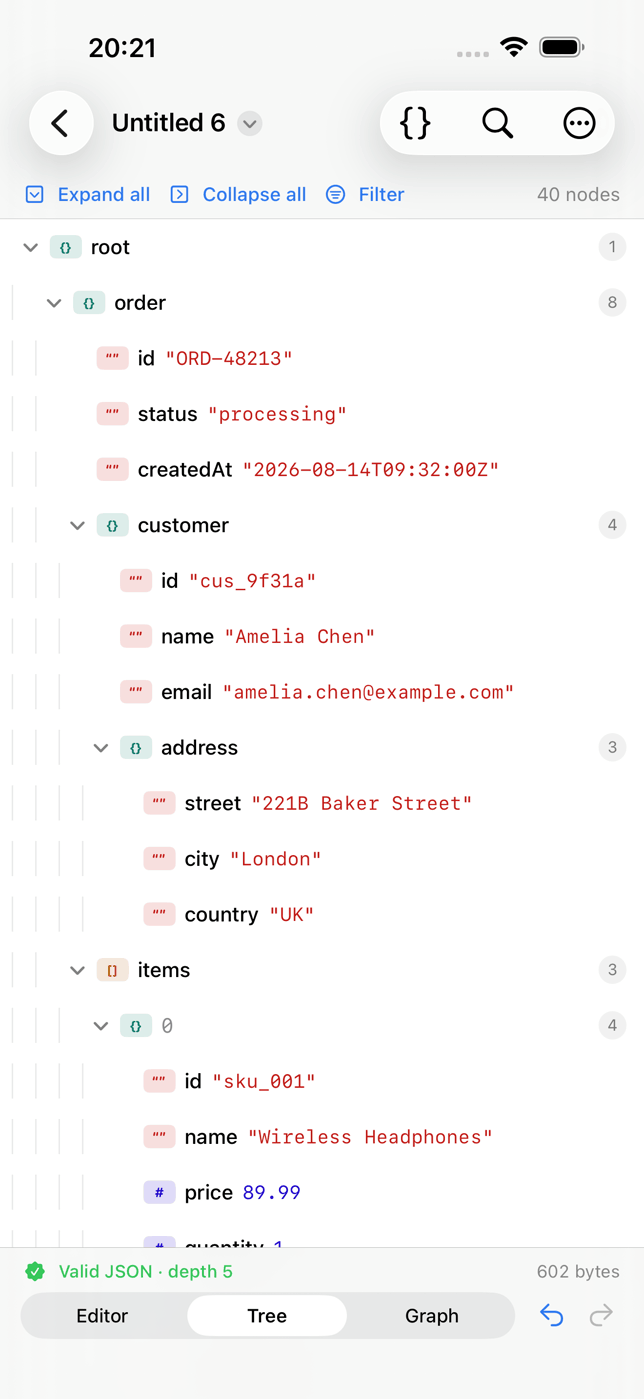
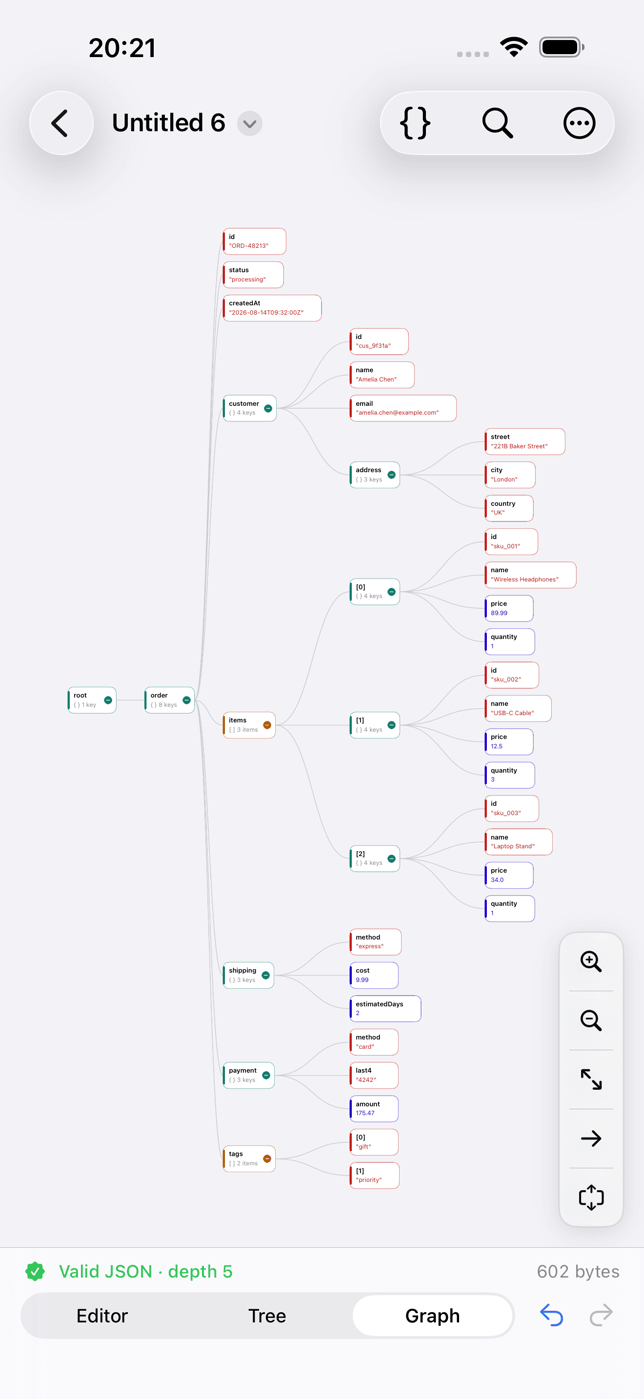
On iPhone and iPad, Smart Json opens a document three ways at once: the text, a tree, and a graph, all of which edit. It opens files from Files and iCloud Drive, accepts JSON from any app's share sheet, and can start a document from the clipboard or fetch it from a URL, with your own request headers if the API needs them.
Opens a JSON file as syntax-highlighted text, a searchable tree and a tappable graph, flags invalid JSON with the line and column, and works offline.
What it doesThat's our app, so discount the recommendation accordingly. The comparison above is the part that has to hold up on its own.
The online formatter trap
Searching "JSON viewer" on a phone leads to websites that format whatever you paste into them. For public data they're fine. For anything else, think about what you are pasting:
- API responses often carry access tokens, session IDs or API keys.
- Exported data often carries names, emails and addresses.
- Some of these sites offer "save" or "share" links that store what you pasted on their server, and security researchers have found large numbers of those saved snippets, credentials included, publicly retrievable.
A local app costs nothing in exposure. If you must use a website, pick one that formats in the browser without uploading, and never use its save feature.
If the file won't open, or opens wrong
- "Invalid JSON" or a blank view: the file is malformed, often by one character. The invalid JSON guide goes through every common error.
- Curly quotes in a file you typed on the phone: iOS's Smart Punctuation
replaces
"with“as you type, and JSON only accepts the straight one. Turn it off under Settings → General → Keyboard → Smart Punctuation before editing JSON by hand. - It's actually
.jsonlor NDJSON: one JSON object per line, not one document. Most viewers expect a single document and will report an error at the start of line two. - It's huge: a native app copes with far larger files than a web page or a text preview, which tend to freeze first. If the file is tens of megabytes, open it in an app rather than a browser tab.
On an iPad
Everything above applies, with two improvements worth using. Split View lets you keep the JSON beside the app or browser you're debugging, and a hardware keyboard makes hand-editing realistic: a JSON editor with keyboard shortcuts for find and undo is close to working on a laptop.