
Double-click a CSV and Excel "helps". Postcode 01234 becomes 1234. Order
number 4012888888881881 becomes 4.01289E+15, and the last digit is
replaced with a zero. Product code 3-5 becomes the 3rd of May. None of this
is in the file. Excel did it on the way in, and if you save, it becomes
permanent.
The fix is not to open the file differently each time and hope. It's to stop Excel guessing, which takes about a minute.
The fast answer
- Don't double-click the CSV. Use Data → From Text/CSV and set the fragile columns to Text before loading.
- On Microsoft 365, turn off the conversions you don't want under File → Options → Data → Automatic data conversion.
- Never save over the original after opening it the double-click way. The damage is written into the file at that moment.
- Google Sheets: File → Import, and untick Convert text to numbers, dates, and formulas.
What Excel changes, and why
A CSV has no types: every value is text. Excel wants numbers and dates, so it guesses, column by column, cell by cell. The guesses that hurt:
| You had | Excel shows | What happened |
|---|---|---|
01234 | 1234 | Leading zero stripped from a "number" |
4012888888881881 | 4.01289E+15 | Scientific notation; digits past the 15th become 0 |
3-5, 1/2 | 5-Mar, 2-Jan | Read as a date |
MARCH1, SEPT2 | 1-Mar, 2-Sep | Read as a date (a famous problem for gene names) |
1E5 | 100000 | Read as scientific notation |
=1+1 | 2 | Read as a formula |
TRUE | TRUE (as a boolean) | Usually harmless, until it's a name |
Two of these are destructive rather than cosmetic. Scientific notation on a
16-digit number throws away the last digit, because Excel stores numbers with
15 significant digits. And a value read as a date is stored as a date serial
number. Change the format back to text and you see a serial number like 46086, not 3-5.
The moment that matters is Save. Opening a CSV changes what you see. Saving it as CSV writes what you see back into the file, and the original values are gone.
Fix 1: import instead of opening
This works in every desktop version of Excel from 2016 on.
- Open a blank workbook.
- Data → From Text/CSV, and pick the file.
- In the preview, click Transform Data (not Load).
- In Power Query, select each fragile column: IDs, postcodes, phone numbers, product codes, account numbers. Then Transform → Data Type → Text. If it asks, choose Replace current.
- Close & Load.
The values arrive exactly as written. You can still do arithmetic on the genuinely numeric columns, because you only switched off the guessing where it hurt.
If you'd rather have the old wizard: File → Options → Data → Show legacy data import wizards → From Text (Legacy). It then appears under Data → Get Data → Legacy Wizards, and step 3 of the wizard lets you mark columns as Text.
Fix 2: turn off automatic conversion
Recent Excel for Microsoft 365 has settings for exactly this, under File → Options → Data → Automatic data conversion:
- Remove leading zeros and convert to a number
- Keep the first 15 digits of long numbers and display in scientific notation
- Convert digits surrounding the letter "E" to a number in scientific notation
- Convert continuous letters and numbers to a date
Untick the ones that bite you. There is also an option to be notified when Excel converts something while opening a CSV, which is worth leaving on: it turns a silent change into a visible one.
These settings apply to double-click opening too, which makes them the most convenient fix. They're also the least portable: the person you send the file to has their own settings.
Fix 3: Google Sheets and Numbers
Google Sheets converts by default, too. Use File → Import → Upload, and in the import dialog untick Convert text to numbers, dates, and formulas. Everything arrives as text, exactly as written.
Numbers on Mac and iPhone also strips leading zeros and reads date-like values as dates. Select the column and set its format to Text to stop it for new entries, but the conversion on open has already happened. If the data matters, check a few known values against the raw file.
Fixes that look clever and aren't
- Wrapping values as
="01234"in the CSV. Excel shows01234. Every other tool reading the file sees a formula, and so does the next system your export goes into. - Adding an apostrophe,
'01234. Same problem: the apostrophe is now part of your data everywhere except Excel. - Formatting the column as Text after opening. Too late. The zero is already gone; formatting can't bring it back.
On a phone
Phones have the same problem with fewer settings. Numbers on iPhone and the Sheets and Excel apps all convert on open, and a CSV re-saved from them carries the changes.
A CSV app that treats every cell as text doesn't have this problem, because it never converts. In Smart CSV Viewer you can still tell a column it holds numbers, currency or dates, so it sorts and filters correctly, but the type only changes how the column is displayed. The text in the file stays as it was.
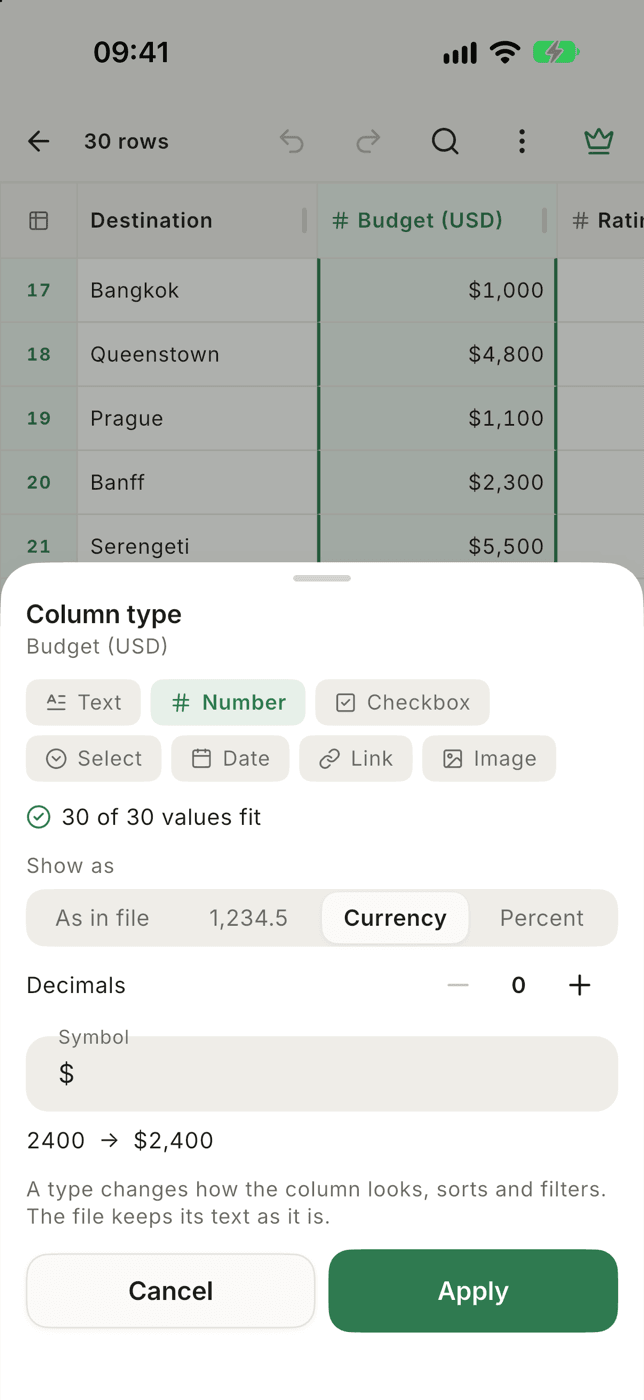

Shows a column as a number, currency or date without rewriting it, so leading zeros, long IDs and codes stay exactly as the file has them.
What it doesA habit worth having
Before you trust any CSV round trip through a spreadsheet, check three values that are easy to break: one ID with a leading zero, the longest number in the file, and one code that looks like a date. If those three survived, the rest almost certainly did. The CSV vs XLSX guide covers why this happens with every spreadsheet, not only Excel.