Totalling a column is the most common thing anyone does with a CSV, and the answer is usually one click away in whatever opened the file. The trouble is that a wrong total looks exactly like a right one. A currency symbol, a total row the export added at the bottom, or a few hundred duplicated lines, and the sum is off with nothing on screen to tell you.
The fast answer
- Excel or Sheets: select the column. The sum is in the bar at the bottom.
- Per category: a pivot table, or
SUMIF. - Command line:
csvstat,mlr, or one DuckDB query, below. - On a phone: select the column in a CSV app that shows selection stats.
- Every time: compare the count of numbers with the count of non-empty cells. If they differ, some values weren't added.
The one-click total
In Excel, click the column letter. The status bar at the bottom shows Average, Count and Sum. Right-click the status bar to add Min, Max and Numerical Count.
In Google Sheets, select the column and the sum appears at the bottom right. Click it to switch to average, count, min or max.
The check that catches most errors: compare Count (non-empty cells) with Numerical Count. In a column of 5,000 amounts, those two should both be 5,000. If Numerical Count says 4,870, then 130 cells are text, and they're missing from the sum.
As a formula
=SUM(D:D)
=SUMIF(B:B, "Travel", D:D)
=SUMIFS(D:D, B:B, "Travel", C:C, ">=2026-01-01")
SUMIF totals the rows where another column matches. SUMIFS takes as many
conditions as you need.
Totals per category
"Total spend per category" is a pivot table, not a formula per category.
- Excel: Insert → PivotTable, drag the category to Rows and the amount to Values. It defaults to Sum; if it says Count, the column is text (see below).
- Sheets: Insert → Pivot table, same idea.
On the command line
csvkit summarises every column, or one:
csvstat -c amount expenses.csv
Miller, sums grouped by category:
mlr --icsv --opprint stats1 -a sum,mean,count -f amount -g category expenses.csv
DuckDB, for any size of file and any question:
duckdb -c "SELECT category, sum(amount) AS total, count(*) AS rows FROM 'expenses.csv' GROUP BY ALL ORDER BY total DESC"
Not awk -F,, despite every Stack Overflow answer suggesting it. It
splits on every comma, including those inside quoted fields like
"Smith, Jane", and then sums the wrong column without complaint.
Why the total is wrong
Every one of these produces a believable number.
Values that aren't numbers
- Currency symbols:
$1,200.00. Many tools treat it as text and skip it. - Thousands separators:
1,200in a CSV is often quoted text. - Decimal commas:
1.200,50from a European system is twelve hundred to a German reader and either text or 1.2 to an English one. - Accounting negatives:
(450.00)means −450 in a finance export and is text to everything else. These are usually refunds, so skipping them overstates the total. - Placeholders:
N/A,-,TBC.
The count check above catches all of these. Fix them at the source if you can; otherwise clean the column before totalling.
Rows that shouldn't be there
- A total row. Bank and accounting exports often end with "Total" or "Closing balance". Include it and you've doubled the sum. Look at the last few lines before you trust the first total.
- Duplicates. A file assembled from overlapping exports counts the overlap twice. See how to remove duplicate rows from a CSV.
- Repeated header rows. Several CSVs concatenated by hand carry their header lines into the middle of the data. They're text, so they're skipped, but they inflate the row count you're checking against.
Signs
Some exports write money out as negative and money in as positive, others put them in separate columns, and some use a positive amount with a separate "Debit/Credit" column. Summing the amount column of the third kind gives you turnover, not balance. The bank statement CSV guide goes through the common layouts.
Excel changed the values first
If the column held long IDs or codes rather than amounts, a double-click open may already have rounded them. That matters less for sums than for lookups, but it's the same cause: Excel changes CSV data as it opens it.
On a phone
Spreadsheet apps on phones show a sum for a selection, but only after the CSV has been converted. A CSV app can do it on the file directly.
In Smart CSV Viewer, tap a column's name to select it, then tap the summary
line above the bottom bar for Selection stats: size, filled and empty
cells, and for numbers the count, sum, average, minimum and maximum. Values
written as 1,234.50, $5 or 1.234,50 are all counted. Tap any figure to
copy it.
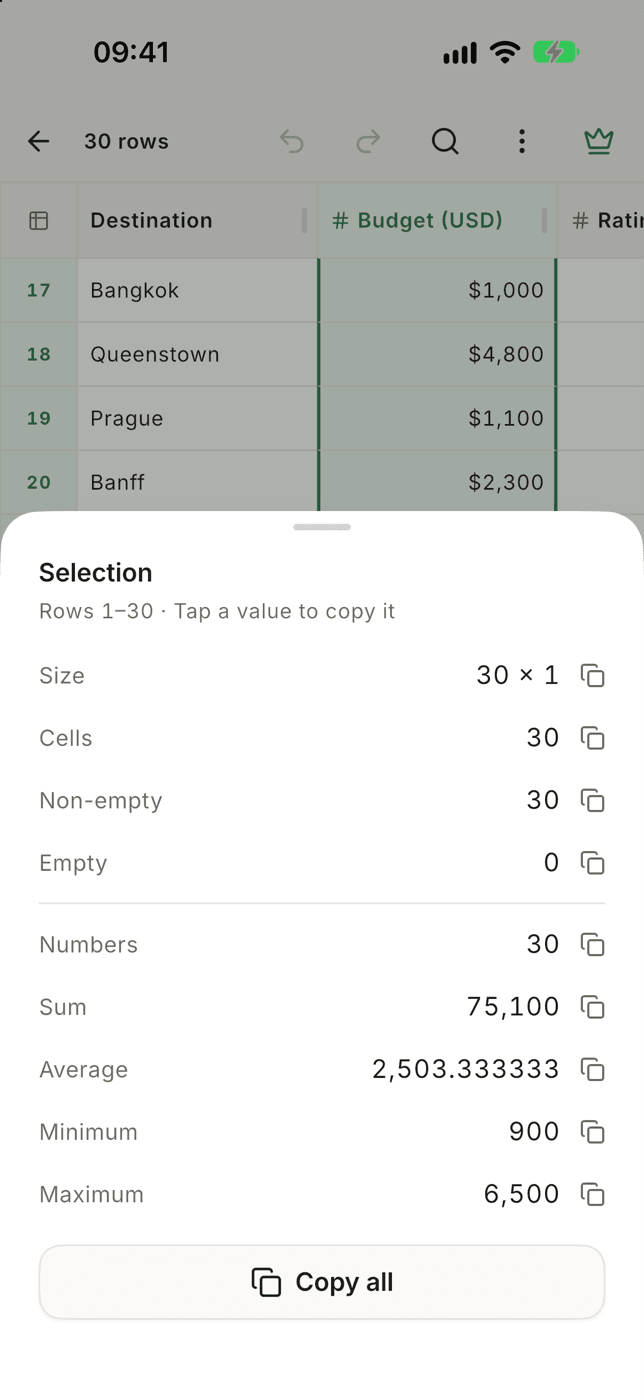
The Numbers line against Non-empty is the count check from earlier, built in. Filter first, and the stats cover only the matching rows, which gives you a per-category total without a pivot table.

Select a column for its count, sum, average, min and max on iPhone or Android, with currency and both decimal styles understood, and filter first for a subtotal.
What it doesA thirty-second sanity check
Before a total goes into an email:
- Count vs numbers. Every non-empty cell was counted as a number.
- The last five rows. No total, balance or footer line.
- The largest value. Sort descending and look at the top. A single misplaced decimal is the most common way a total goes wrong by a factor of a hundred.