Filtering a CSV is two jobs that people treat as one: seeing only the rows that match, and saving only those rows as a new file. Every tool does the first well. The second is where the traps are, because a spreadsheet that shows you 40 filtered rows will happily save all 40,000.
The fast answer
- Look at matching rows: Excel or Sheets, Data → Filter, pick values.
- Save only matching rows: filter, select the visible rows, copy them to a new sheet, then save that. Or use a tool that writes the filtered result directly.
- Big file, or repeatable: one command,
csvgrep,mlr, or DuckDB, below. - On a phone: a CSV app with a real filter panel, so you're not doing it on a converted spreadsheet.
In Excel
- Click any cell in the data and press Ctrl+Shift+L (⌘+Shift+F on Mac), or Data → Filter.
- Use the arrow in a column header to pick values, or Number Filters / Text Filters for conditions such as greater than or contains.
- Combine filters across columns: each one narrows the result further.
To save only the filtered rows: select the visible range, copy, paste into a new sheet, and save that as CSV. When you copy a range with an AutoFilter applied, Excel copies only the visible rows.
The trap: saving the filtered sheet itself as CSV writes every row, hidden ones included. The filter is a view, not a change to the data.
OR across columns (rows where country is Germany or revenue is over 10,000) isn't possible with AutoFilter, which only ANDs columns together. Use Data → Advanced with a criteria range, where conditions on separate rows are ORed, and tick Copy to another location to write the result somewhere new in one step.
And because this is a CSV: if it holds IDs, postcodes or long numbers, open it with an import rather than a double-click, or the values you filter on may already have been changed. See how to stop Excel changing your CSV data.
In Google Sheets
Data → Create a filter works like Excel's. But Sheets has something more
useful for this job, the FILTER function, which writes the matching rows
somewhere else and keeps them updated:
=FILTER(A2:F, C2:C="Europe", E2:E<2000)
Each extra condition is ANDed. For OR, add them: (C2:C="Europe")+(C2:C="Asia").
Put that formula in a new tab, and that tab is your filtered file:
File → Download → CSV while it's active.
On the command line
For files too big for a spreadsheet, or a filter you'll run every week, a command is faster than clicking and gives the same answer every time.
grep is tempting and wrong. It matches text anywhere in the line, so
grep Europe also matches a row whose notes say "not Europe". It drops the
header row. And awk -F, splits on every comma, including the commas inside
quoted fields. Use a CSV-aware tool.
csvkit, exact match or pattern on one column:
csvgrep -c country -m "Germany" in.csv > germany.csv
csvgrep -c email -r "@example\.com$" in.csv > example.csv
Miller, for conditions:
mlr --csv filter '$country == "Germany" && $revenue > 10000' in.csv > out.csv
DuckDB, for anything SQL can say, and for files of any size:
duckdb -c "COPY (SELECT * FROM 'in.csv' WHERE country = 'Germany' AND revenue > 10000) TO 'out.csv'"
All three keep the header, respect quoting, and write only the matching rows. The SQL on a CSV guide goes further with DuckDB.
Filtering mistakes that give the wrong rows
Every one of these returns a plausible-looking result, which is what makes them dangerous.
- Case and spacing.
Germany,germanyandGermany(trailing space) are three different values to most filters. Look at the column's distinct values before filtering on one. - Numbers stored as text.
revenue > 10000compares text when the column is text, and"9000" > "10000"is true alphabetically. Make sure the tool sees the column as numbers. - Dates in mixed formats.
03/04/2026is March in one export and April in another. Filter on a date column only after checking which. - Blanks. Is an empty cell zero, unknown, or not applicable? Filters usually exclude blanks from "less than" conditions, silently.
On a phone
Converting a CSV to a spreadsheet on a phone to filter it brings every problem above plus a small screen. A CSV app with its own filter does it on the file as it is.
In Smart CSV Viewer, Filter opens a panel over the table. Add conditions by column; the operators follow the column's type, so a number column compares numbers and a date column compares dates. The button tells you how many rows will remain, Apply · 4 rows, before you commit. For a quick one, hold any cell and choose Filter by this value.
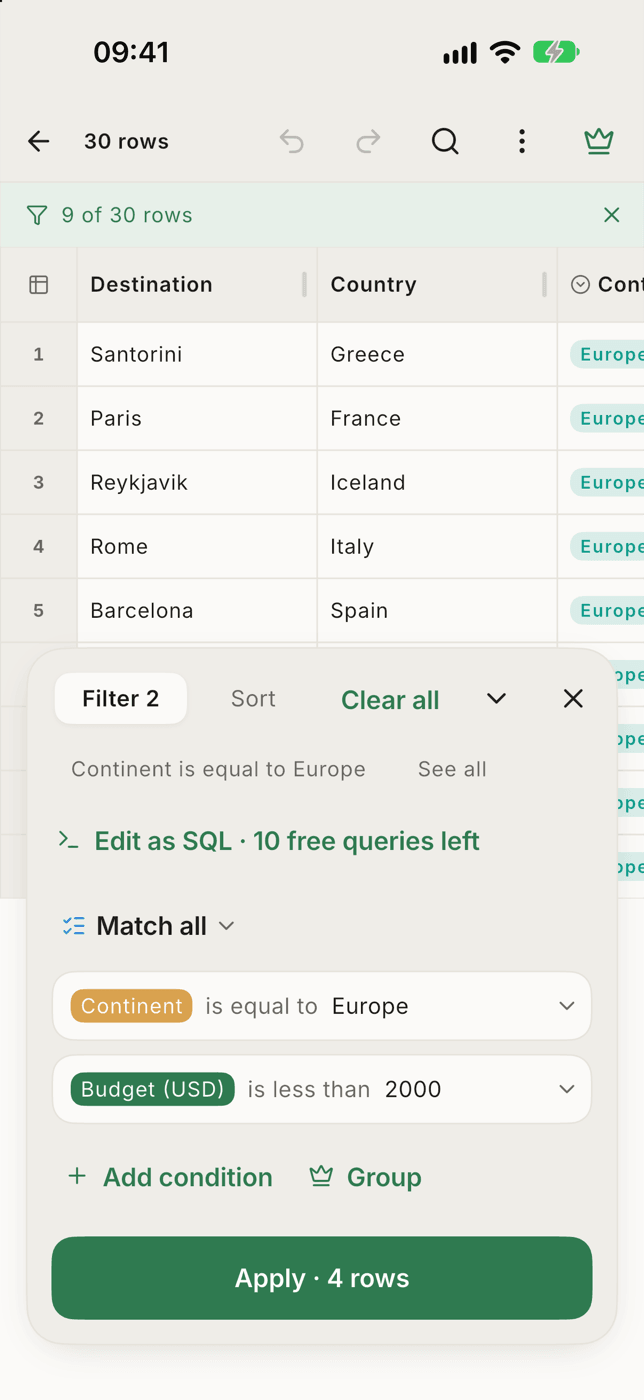
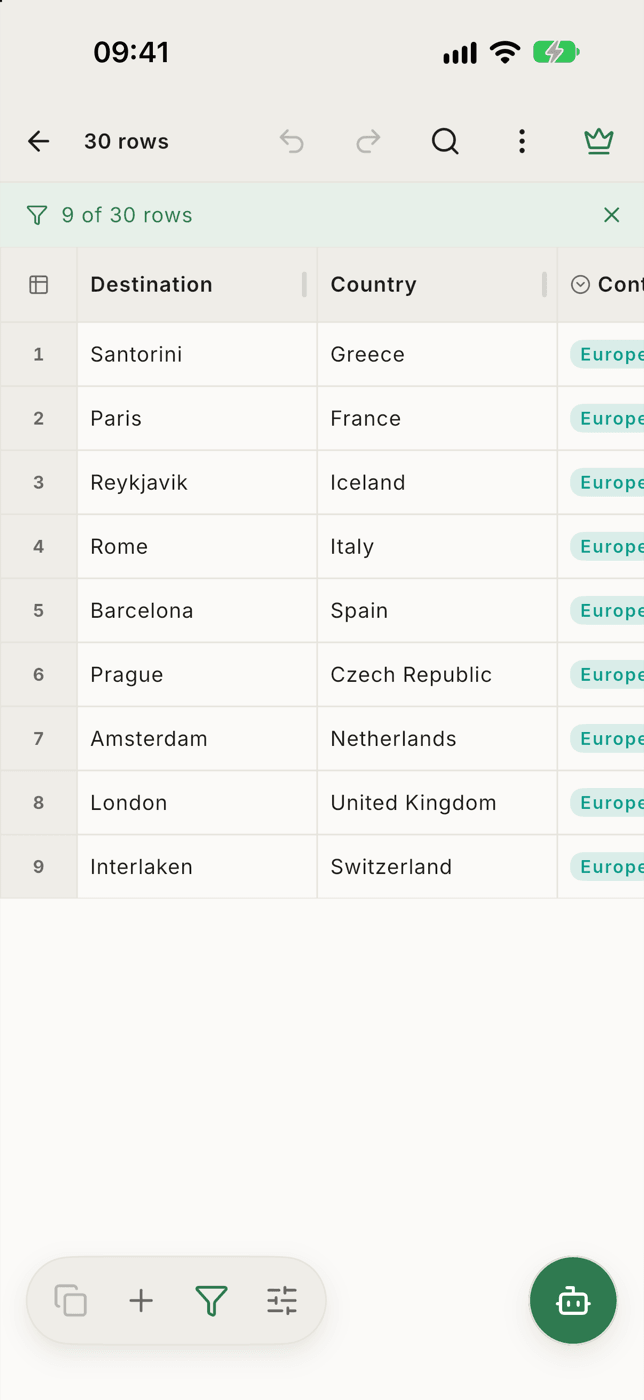
Edit as SQL turns the conditions into a query you can change by hand. To take the result somewhere else, select the rows and copy: the copy follows your filter, and pastes into a spreadsheet as real cells. You can also ask for rows in plain words with the AI assistant, which sends only your column names.

A filter panel built for CSV on iPhone and Android: typed conditions, the matching row count before you apply, SQL when you want it, and nothing uploaded.
What it doesCombining conditions with match any or match none groups is a Pro feature; plain AND conditions are free.